
Fast internet does not guarantee low ping, and home congestion or server distance may be to blame
High download speeds do not ensure responsive online games or video calls because ping measures round-trip response time, not bandwidth. Home congestion from uploads, downloads or many active devices can create bufferbloat and jitter, while connecting to distant game servers adds latency regardless of plan speed. Testing ping under load, using wired connections, checking QoS or SQM settings, and selecting closer game server regions can help identify and reduce the problem.

A fast speed test result does not necessarily mean online games or video calls will feel responsive. The article explains that bandwidth measures the maximum rate at which data can be transmitted, while ping measures the time it takes for data to travel to a server and back. A ping of 50 milliseconds or less is considered good for most online games, whereas 800 milliseconds means nearly a full second for a round trip.
Home network congestion can worsen latency even on a high-speed connection. The article gives the example of a phone uploading vacation videos to the cloud while someone joins a video meeting on a laptop. If the upload consumes available bandwidth, packets from the call may wait behind other traffic, creating queuing delays known as bufferbloat. Large game downloads on other devices can cause similar issues. The number of connected devices matters less than what those devices are doing.
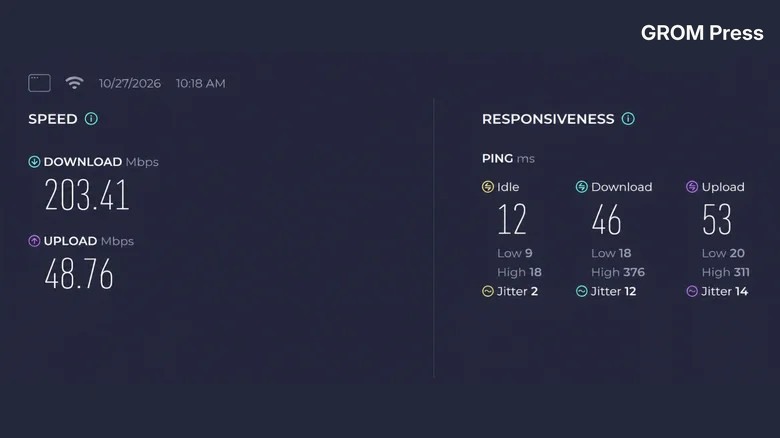
To check whether congestion is the problem, the article suggests using Ookla's Speedtest to compare idle, download and upload ping numbers. If latency increases under load, users should pause automatic updates, cloud backups and other large transfers, then test whether the game or call improves. Transfers can also be restricted or scheduled for times when no one else is online. Waveform's bufferbloat tester is mentioned as another tool for checking this specific problem.
If lag spikes continue, connecting a PC or console with an Ethernet cable can help rule out Wi-Fi interference. Phone users are advised to move closer to the router and switch to 5GHz Wi-Fi.
If performance remains poor under load, users can check their router's app or admin page for Quality of Service or Smart Queue Management settings. These can manage congestion, although some configurations may reduce maximum download speed. A 2025 RTINGS evaluation found that nine out of 11 routers improved latency under simulated congestion when QoS was enabled.
Distance to the game server is another factor. A player in London connecting to a server in New York must send inputs across the Atlantic and wait for responses to return. Choosing a suitable European server would generally shorten the trip, and spending more on an internet plan does not make New York any closer.
The article also notes that internet providers do not necessarily route traffic over the shortest path, so two people in the same area can experience different ping if their data travels through different routes. EA is cited as saying that the geographically closest game data center is not always the one offering the best connection.
A speed test can be misleading because it measures latency to a test server, not the game server. A good result to an ISP's server in the nearest city does not reveal how responsive an online match will be if the nearest game server is 500 miles away.
The article recommends checking connection statistics in the game and comparing available server regions. If only one game is affected, users should check the server status or select a different region. If high ping occurs across all services on a quiet, wired connection, the article suggests contacting the ISP before buying new hardware.
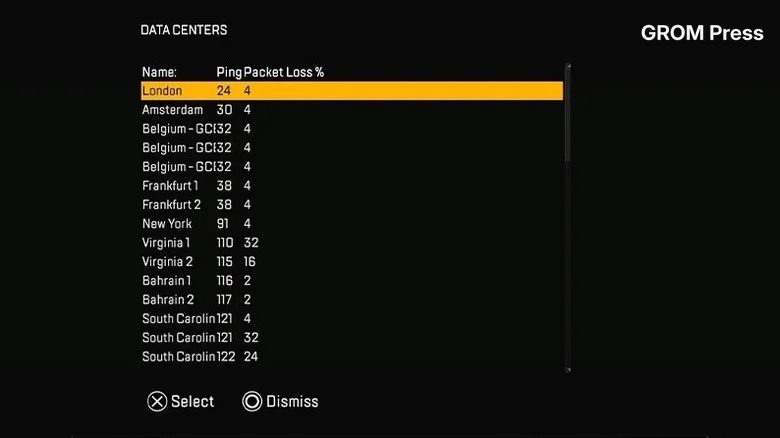
As an example, in Apex Legends, players can press Data Center on the bottom-left of the launch screen before choosing Continue to compare available servers' ping and packet loss before selecting one.






Comments
No replies yet. Start the discussion.
Sign in to reply