
Five Apple Watch shortcuts that can be set up in minutes
The article describes five shortcuts for the Apple Watch: Get Me Home, an ETA text message, a Good Night Home scene, a 20-minute nap timer with Do Not Disturb, and CarPlay driving mode that dims the watch and mutes sounds. Each is created in the iPhone Shortcuts app and enabled for the watch with the Show on Apple Watch switch. Setup takes about 15 minutes in total.
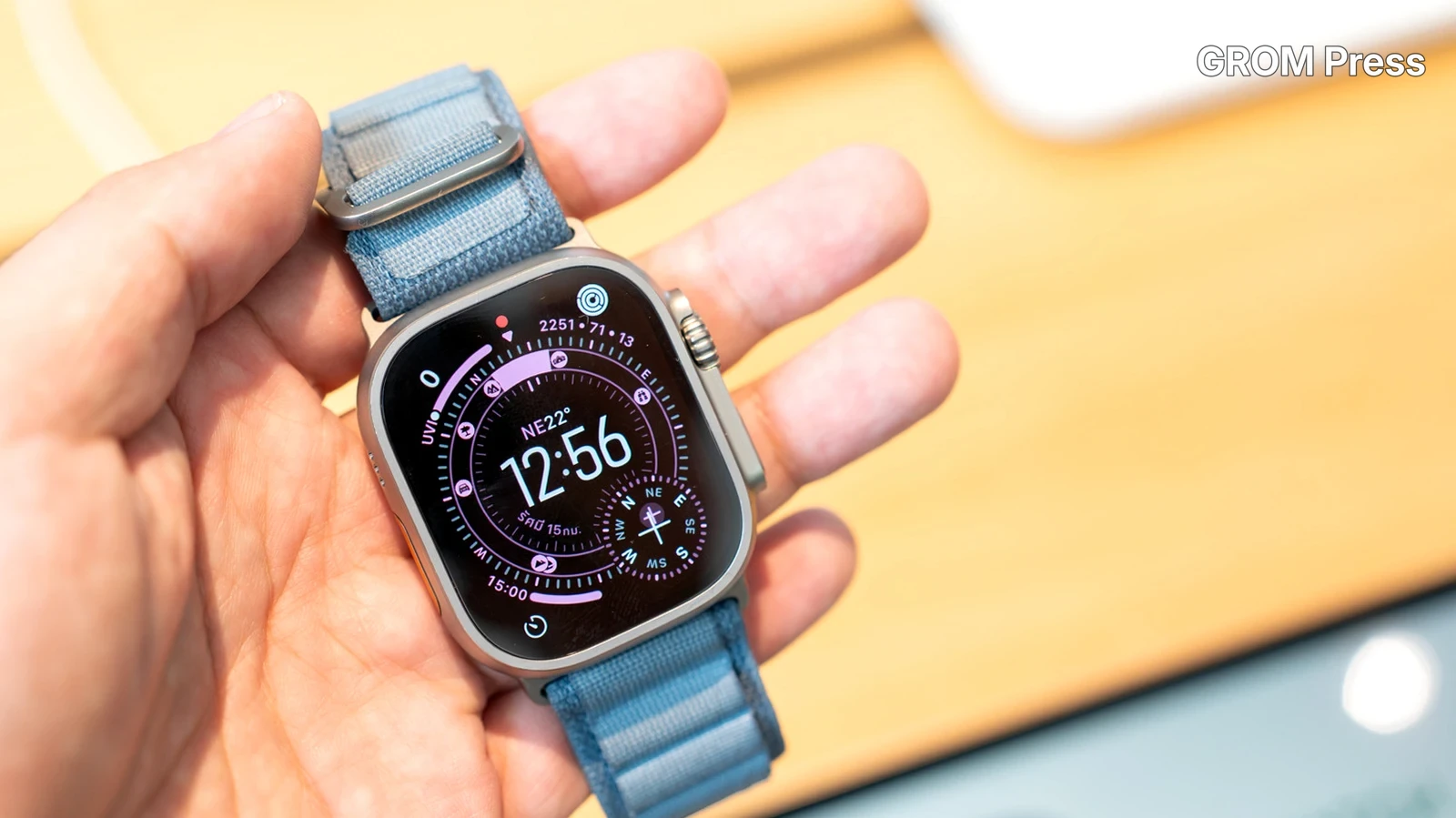
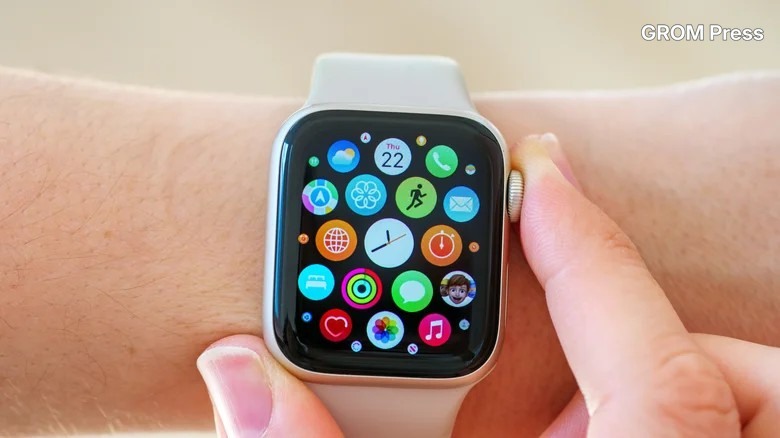
The article presents five shortcuts that an Apple Watch owner can create in the Shortcuts app on an iPhone and then enable on the watch by turning on the Show on Apple Watch switch in each shortcut's settings. Once configured, the shortcuts can be run from the Shortcuts app, a watch face complication, a Smart Stack widget, or, on an Apple Watch Ultra, the Action button. Users with an iPhone 15 Pro or newer can also ask Apple Intelligence to build a shortcut by describing it in plain English.
The first shortcut is Get Me Home. It uses the Open Directions action with a saved home address as the destination and lets the user choose walking, driving or public transit directions and a preferred maps app. The shortcut can be named, given a house icon and a color, and added to a watch face complication. A circular slot on a face such as Modular works well. iOS 26.4 added multi-stop driving directions to the same action, so a route home can include a stop such as a school pickup.
The second shortcut sends an estimated time of arrival to chosen contacts. It uses the Get Travel Time action with the home address as the destination, a Text action that combines a message such as "Leaving now, home in" with the Travel Time variable, and the Send Message action. Since iOS 27, recipients can include groups as well as individuals. The shortcut can be run with one tap from a complication or widget, or turned into an automation that starts when the user leaves a saved location such as a workplace. In iOS 27, that trigger lives inside the shortcut and syncs across other devices. Running it once on the iPhone is necessary because it requests permission to use location and send messages.
The third shortcut turns off lights and outlets with a single silent tap. It requires an Apple Home setup and a scene created in the Home app, for example named Good Night, with every light and outlet to be turned off. Items that should stay on, such as a hallway light at low brightness or a cooler thermostat setting, can also be included. The shortcut then uses the Control Home action to run the scene. A Good Morning scene can be built the same way to switch on kitchen lights, raise the thermostat and boil a kettle. An iPhone automation can run the morning shortcut when the user stops an alarm.
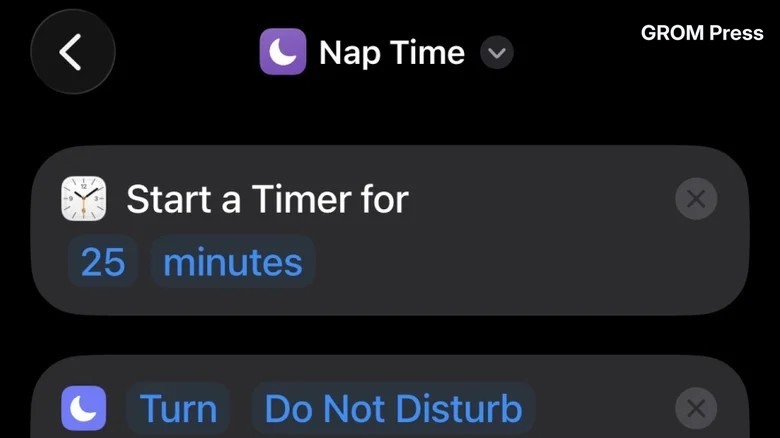
The fourth shortcut is a nap timer. It uses the Start Timer action set to 20 or 25 minutes, followed by Set Focus with Do Not Disturb turned off after the same amount of time so notifications return automatically when the timer ends. The shortcut can be named Nap, given a moon icon and enabled for the watch. On an Ultra, the Action button can start it. The same idea can be applied to workouts using the When I start a workout automation trigger paired with Do Not Disturb, which keeps the phone silent during a run or gym session.
The fifth shortcut pair handles driving. One shortcut turns Set Wake on Wrist Raise off and Set Theater Mode on, which the article notes may also be called Cinema Mode. Theater Mode keeps the display dark until it is tapped or a button is pressed. The second shortcut reverses both settings. Since iOS 27, automations live inside individual shortcuts rather than a separate tab. A CarPlay trigger set to Connects runs the first shortcut immediately without asking for confirmation each time the user gets in the car. The duplicate shortcut uses the Disconnects trigger to restore normal watch behavior when the user parks. The same pair works with a regular Bluetooth connection or Driving Focus if CarPlay is not available. The article says the last shortcut can also help cut down on driving distractions.
The article estimates that setting up all five shortcuts takes roughly 15 minutes and that each one saves a few taps every day. It does not provide independent verification of these time savings.




Comments
No replies yet. Start the discussion.
Sign in to reply