
iOS settings to help control mobile data use
The article lists iPhone settings and app-level options for monitoring and reducing cellular data consumption, including per-app data toggles, Low Data Mode, Wi-Fi Assist, App Store and iCloud backup settings, streaming quality controls, offline maps, and third-party app data-saving features.

The main event is the publication of a guide explaining how iPhone users can manage mobile data use through built-in iOS settings and third-party app options. Its significance is practical: it helps users avoid excess-data charges or speed throttling after exceeding a monthly allowance.
The guide says cellular data is consumed not only by downloads and video streaming but also by background app refresh, app updates and cloud syncing. Users can view data use by individual app in Settings under Cellular, in the Cellular Data section, by tapping Show All. Apps can be sorted by name or usage. A toggle next to any app prevents that app from using cellular data; the app will stop updating content in the background away from Wi-Fi and might stop sending notifications. When the app is next opened, iOS alerts the user that mobile data has been turned off and offers the option to re-enable it.
Turning off mobile data entirely can prevent data usage and reduce battery drain for users who rely mainly on Wi-Fi. This is done in Settings under Cellular by toggling Cellular Data on or off.
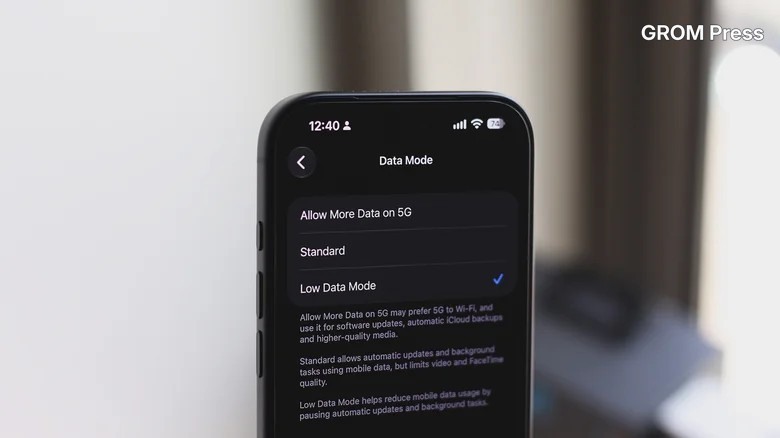
iOS also offers Low Data Mode, found in Cellular settings under Cellular Data Options and Data Mode. The default may be Standard, which allows automatic updates and background tasks away from Wi-Fi. Low Data Mode restricts these activities, reducing mobile data use.
The article warns that a Wi-Fi connection does not guarantee the iPhone will avoid mobile data. Users can turn off Connectivity Assist in Settings under Wi-Fi. Before iOS 27, the feature was called Wi-Fi Assist and was located under Settings in Cellular. Connectivity Assist keeps the iPhone connected by switching to cellular data when Wi-Fi becomes too weak or busy. Turning it off may reduce unexpected mobile data use, though the user may experience potential disruptions.
Beyond the Settings app, automatic update behavior can be changed in Settings under Apps, then App Store, by turning off Automatic Downloads under the Mobile Data section. In iCloud settings, under iCloud Backup, the Back Up Over Mobile Data toggle should be unchecked.
For music streaming, the article suggests checking audio quality in the app. Apple Music users can find this in Settings under Apps, then Music, then Audio Quality, then Data Streaming. Lossless audio is described as using a large amount of data. Other apps, including Tidal, Spotify and YouTube Music, also allow reduced audio quality on mobile data. Lowering YouTube video quality to 720p can also help. Navigation apps such as Apple Maps and Google Maps allow maps to be downloaded for offline use, reducing navigation data consumption.
Third-party apps may include their own data-saving toggles. WhatsApp users can stop automatic media downloads from new chats by tapping their profile picture, navigating to Storage and data, and setting Media auto-download for photos, videos and documents to Wi-Fi. Instagram users can find a Use less mobile data toggle in the app's settings under Media quality.






Comments
No replies yet. Start the discussion.
Sign in to reply